-
Getting Started
-
User Interface
-
Fundamentals
-
Input
-
Data Types
-
Data Actions
-
Data Exploration
-
Calculations
-
Graph Settings
-
Common Elements
-
Core Graphing
-
Annotating
-
Data Analysis
-
Functions & Fitting
-
Staying Organized
-
Exporting
-
Scripting
-
Beta
-
Join the Community
-
Under Review
The Thumbnails
Within a file, you can create and manage multiple graphs, using the thumbnails.

Click a thumbnail to select the active graph, or click and drag to reorder graphs.
Thumbnail Actions
Hover your mouse over a thumbnail and you will see several symbols around the edge.
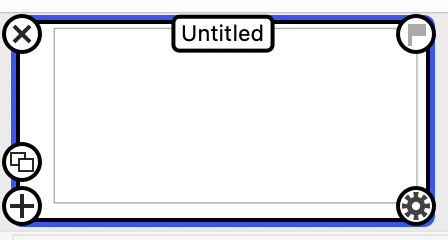
 | Add | Adds a new graph |
 | Clone | Makes an exact copy |
 | Delete | Removes graph (⌘Z to Undo) |
 | Flag | Adds a flag to graph corner |
 | Gear Menu | Shortcut menu |
Watch the following short video to see how to add, clone, rearrange, and delete graphs.
Naming Graphs
Names help you organize and identify graphs in your files.

When you export a graph, its thumbnail name becomes the suggested filename. While naming is optional for single exports, names are required when exporting multiple graphs simultaneously.
Exercise:
- Hover your mouse over a thumbnail.
- Click in the bar and start typing to add a name.
- To remove a name, delete all text.
Flagging Graphs
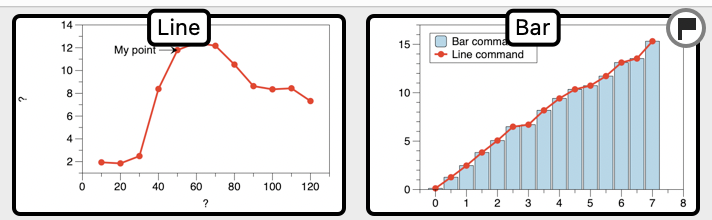
When you add a flag to a graph, you then have the option to export all flagged graphs at one time. This option is available from the Edit menu.
Exercise:
- Remove any flags from your graphs
- Click the File in the menu bar
- Find the Export Flagged Graphs option, and notice that it is not selectable.
- Exit the menu and add a flag to at least one graph
- Return to the File menu
- Notice how Export Flagged Graphs is now active
Grouping Graphs
To further organize your graphs, place them in groups.
Exercise:
- Click the gear menu on a thumbnail
- Select ‘Create Graph Group‘
- Drag other graphs into the group
- Give the group a name
- Click the top left corner to open and close
For more details, see Organizing Graphs.