The Layers
Understanding layers is essential to creating sophisticated visualizations in DataGraph. Like an artist building a painting with multiple layers of paint, DataGraph builds your graph by stacking commands one on top of another. This layering system gives you precise control over which elements appear in front of or behind others, allowing for complex compositions while maintaining a clear visual hierarchy.
In this section, you’ll learn how commands are ordered and rendered, how to control the visibility of different elements, and how to organize related commands into groups—skills that are crucial for creating professional, publication-quality graphics.
Command Order
The Commands are evaluated in the order they are listed, similar to a computer program; as a result, graphic elements are drawn from bottom to top, like layers in a stack.
While the layout settings maintain a fixed position (Style, Canvas, and Axis), you can freely rearrange commands to control their drawing order:
- Top commands appear below later ones
- Drag commands up/down to reposition
- Commands listed last appear on top
Command Visibility
DataGraph provides several ways to control the visibility of commands in your graph:
- Select and press the delete key to remove a command permanently
- Use Hide/Exclude buttons (right side) for temporary visibility
- Hide: removes from view but preserves axis range/scale
- Exclude: ignores data completely, potentially affecting axes
- Toggle Hide/Exclude anytime to restore visibility
Selecting Commands
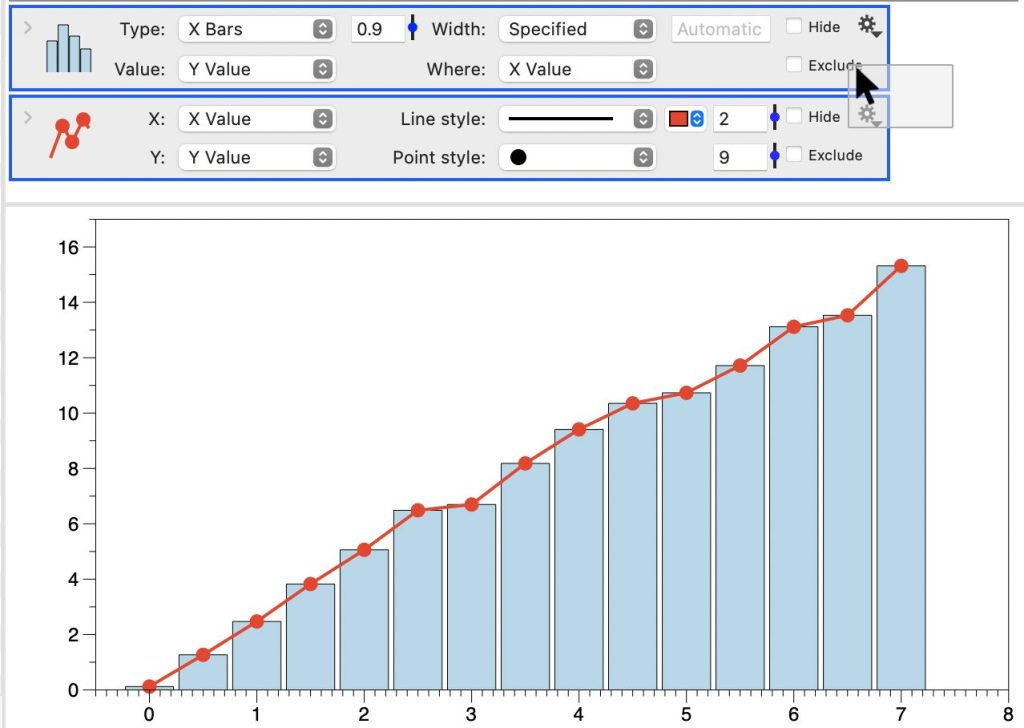
A selected command has a blue outline. Select a single command by:
- Clicking the command’s icon in the list
- Clicking any element in your graph
- Click outside to clear the selection
Selecting multiple commands allows you to drag and reorder several commands at once. Or delete several commands at once.
Click and drag from the side to select multiple.
Grouping Commands
Groups help organize related commands while preserving their individual behavior:
- Commands can be freely dragged in/out of groups
- Groups can be reordered like individual commands
- Hide/Exclude entire groups at once
- Collapse groups to save space
To create a group:
- Select the commands to group
- Click the Group icon (
 ) or use Command > Add drawing group
Here are two commands in a group.
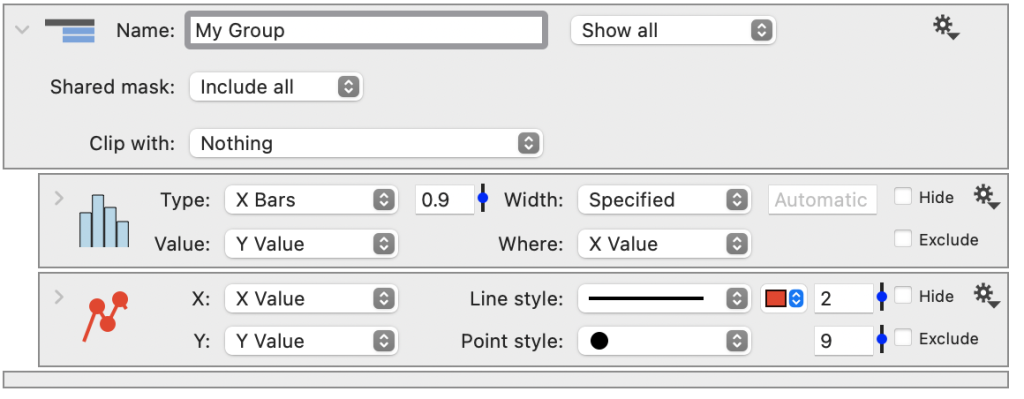
Here is a collapsed group object.

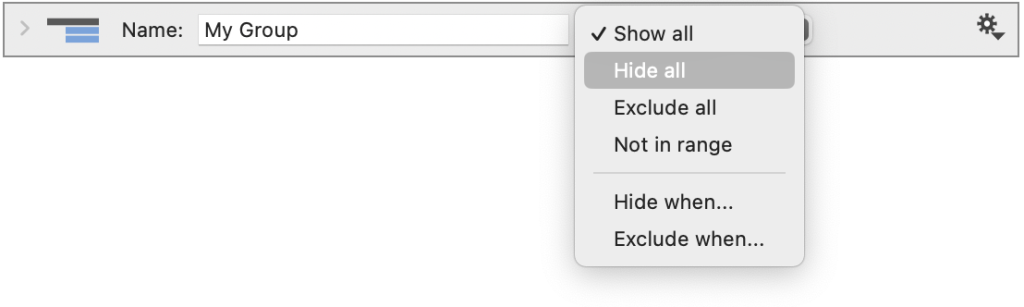
Note: Grouping doesn’t affect drawing order. Use the menu (➔) next to the group name to Hide/Exclude all commands in the group.