ImageTank Reference Manual
Manual Points Selection
Overview
The Manual Points Selection feature in Image Tank allows you to select and track specific points within your images precisely. This is especially useful for tracking objects, marking features, or creating reference points for analysis.
This feature is available for Bitmaps and Images.
Getting Started
Opening the Manual Points Selection Tool
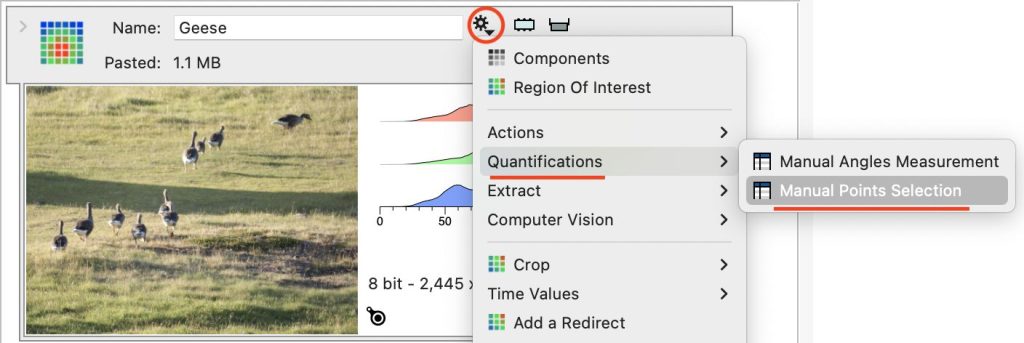
- Load your image into Image Tank (in this example, an image named “Geese” is loaded)
- Navigate to the points selection tool by selecting Qualifications and “Manual Points Selection” from the gear menu
This creates a table object.

Selecting Points
How to Select Points
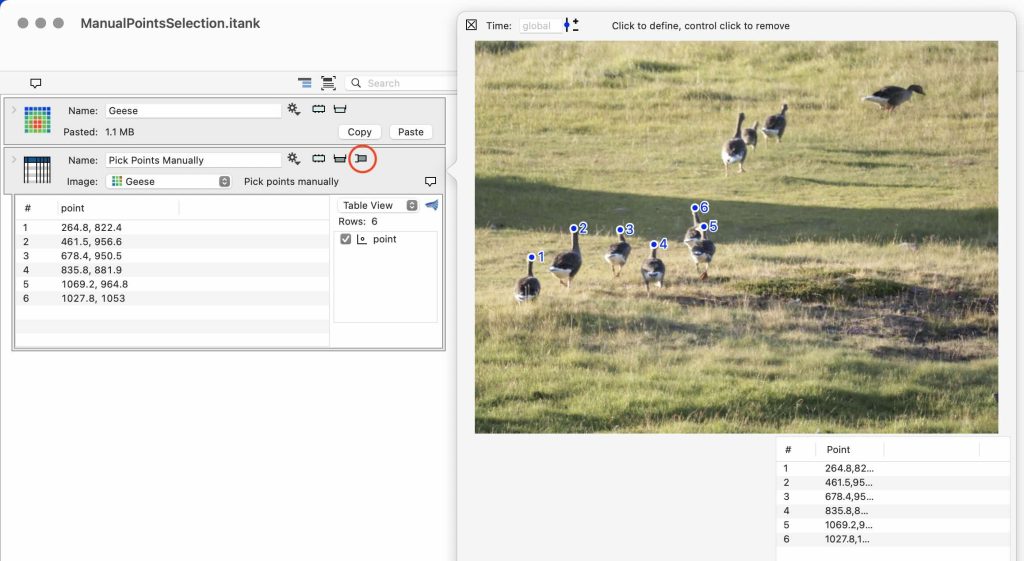
- From the table object, open the side pop-up
- Your image is displayed in the side panel; click directly on the areas you want to mark
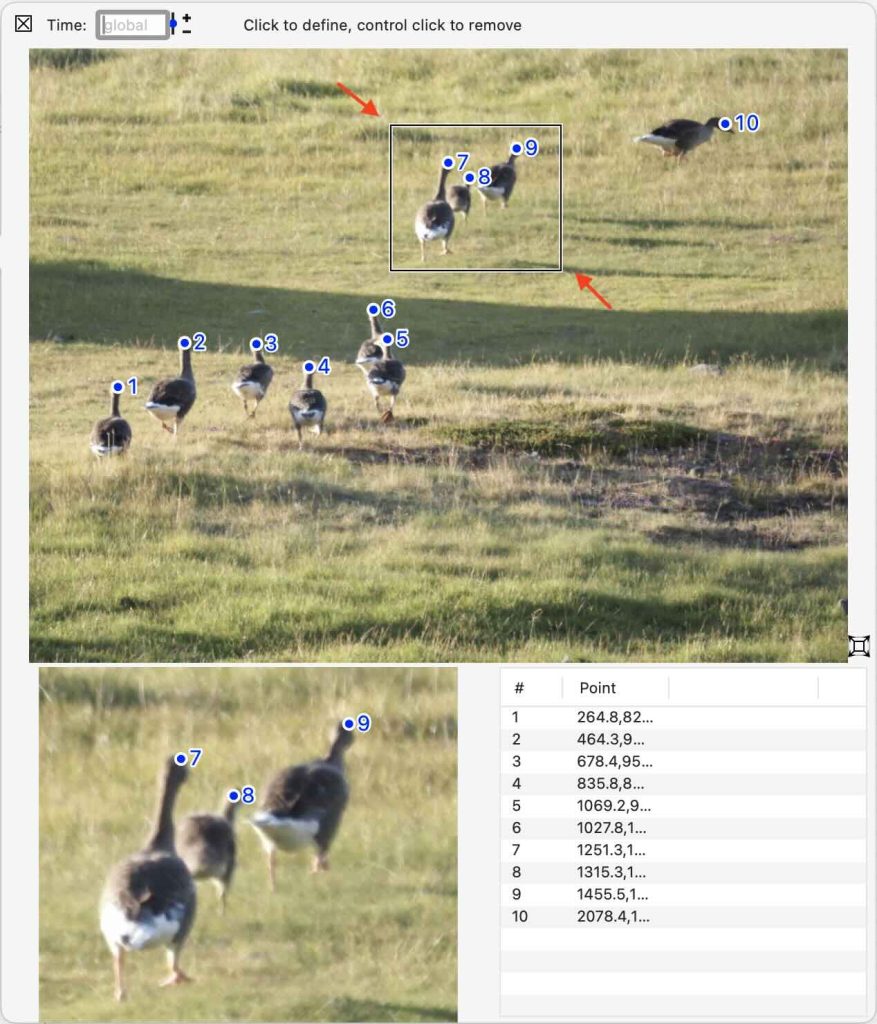
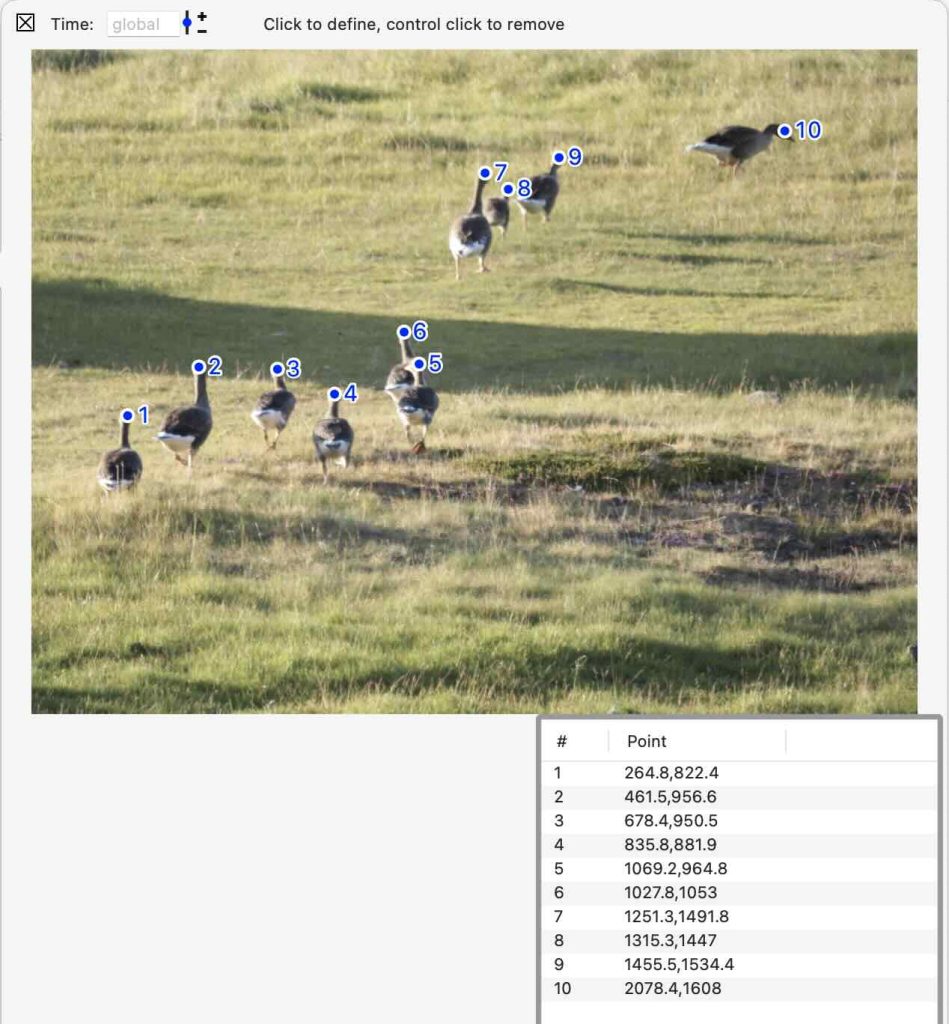
- Each click creates a numbered point that appears on the image (numbered 1-6 in the example)
- Points are automatically tracked in the table view on the left side of the interface
Understanding the Points Table
The table displays all selected points with their coordinates:
- #: Sequential number of the point
- Point: X and Y coordinates of each selected point (e.g., 264.8,822.4)
Managing Your Points
Viewing All Points
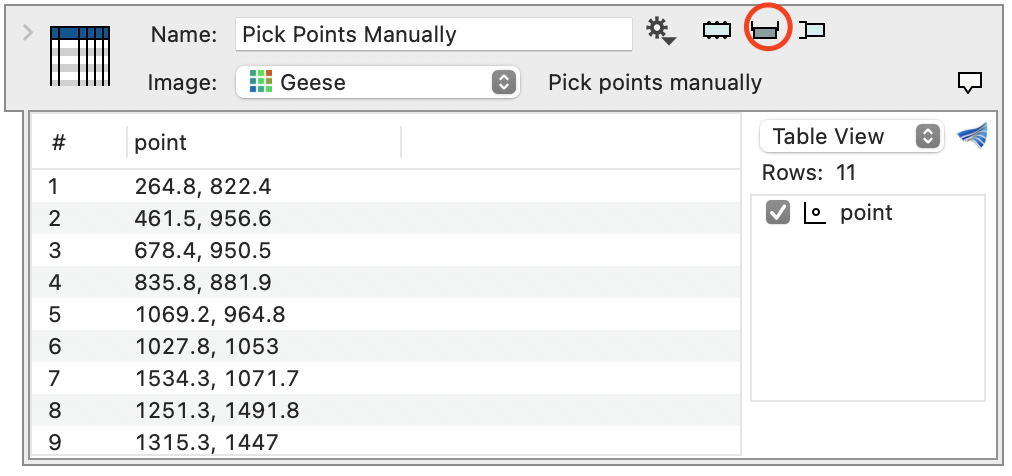
- All points are visible in the table view on the left panel
- Points are also visually numbered on the image in the right panel
Editing Points
- Click to define: Place a new point on the image
- Control+click to remove: Remove an existing point from the image
- Delete key to remove: Remove from the table
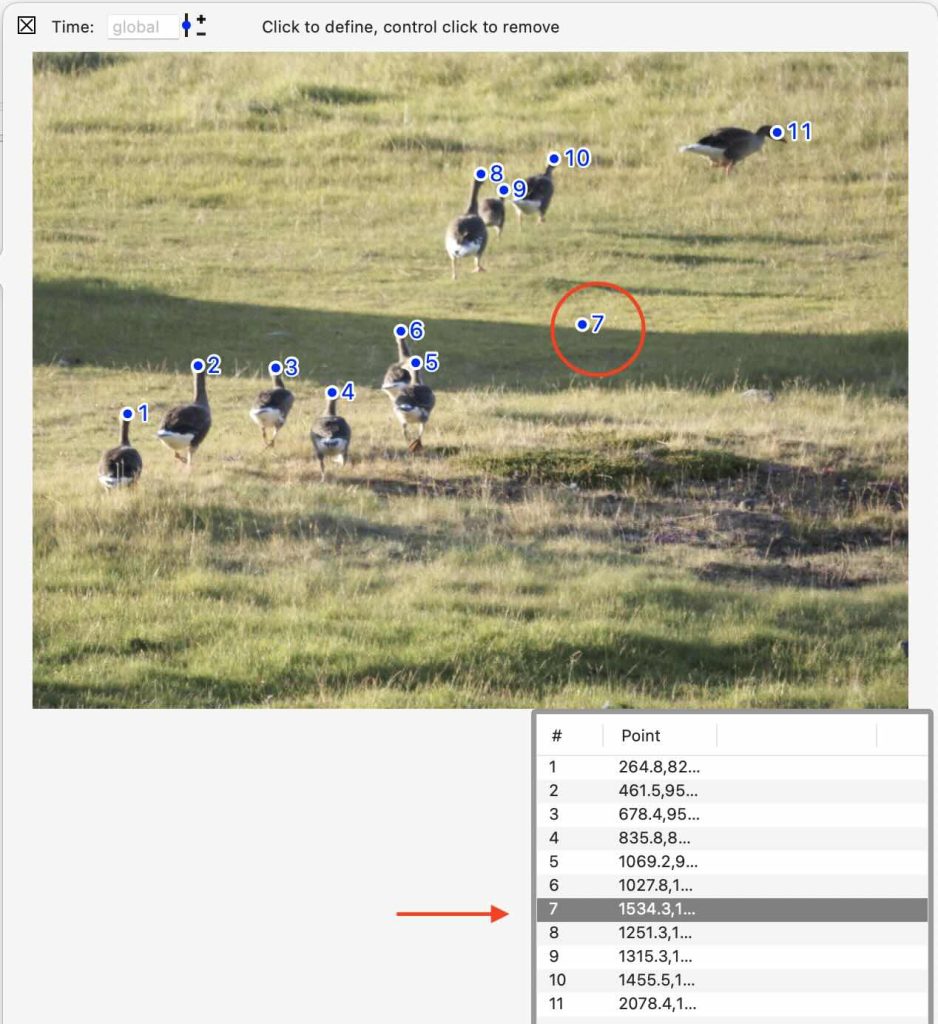
Note: When you delete a point, the row numbers may change.
Time Settings
- Use the “Time” slider to move to a different image (set to “global” in the example)
- This is useful when working with time-series images or videos

Tips for Effective Point Selection
- For precise selection, zoom in on areas of interest before placing points, the selected region is shown in the bottom left
- You can adjust the select region by clicking and dragging to adjust the location or the size
- Select points in the zoomed inset or the larger image
- Click and drag points to adjust the location